

How to Use Mailchimp's Transactional Messaging MCP
What is an MCP?
An MCP (Model Context Protocol) allows AI agents to interact with API, knowledge bases, or other content. Our MCP specifically allows you to interact with the Transactional Messaging API, give onboarding help regarding Transactional Messaging, and submit feedback.
What can the MCP do?
Our MCP mirrors what our API can already do.
Prerequisites
In order to complete some of the MCP actions, we recommend to have the following setup in advance:
- Create an API key
- Authenticate a sending domain
- If you are using Transactional SMS, have an SMS number setup
How do I set up the MCP?
The MCP server URL is https://mandrillapp.com/mcp. Setup varies by client:
Claude Desktop Open Claude Desktop, go to Claude menu → Settings → Developer → Edit Config. This opens claude_desktop_config.json. Add the following under mcpServers:
Save the file and restart Claude Desktop. You should see an MCP indicator in the bottom-right of the chat input.
Claude Code (CLI) Run this command once:
Cursor Add to ~/.cursor/mcp.json (create it if it doesn’t exist):
VS Code Add to .vscode/mcp.json in your project:
Managing MCP Access
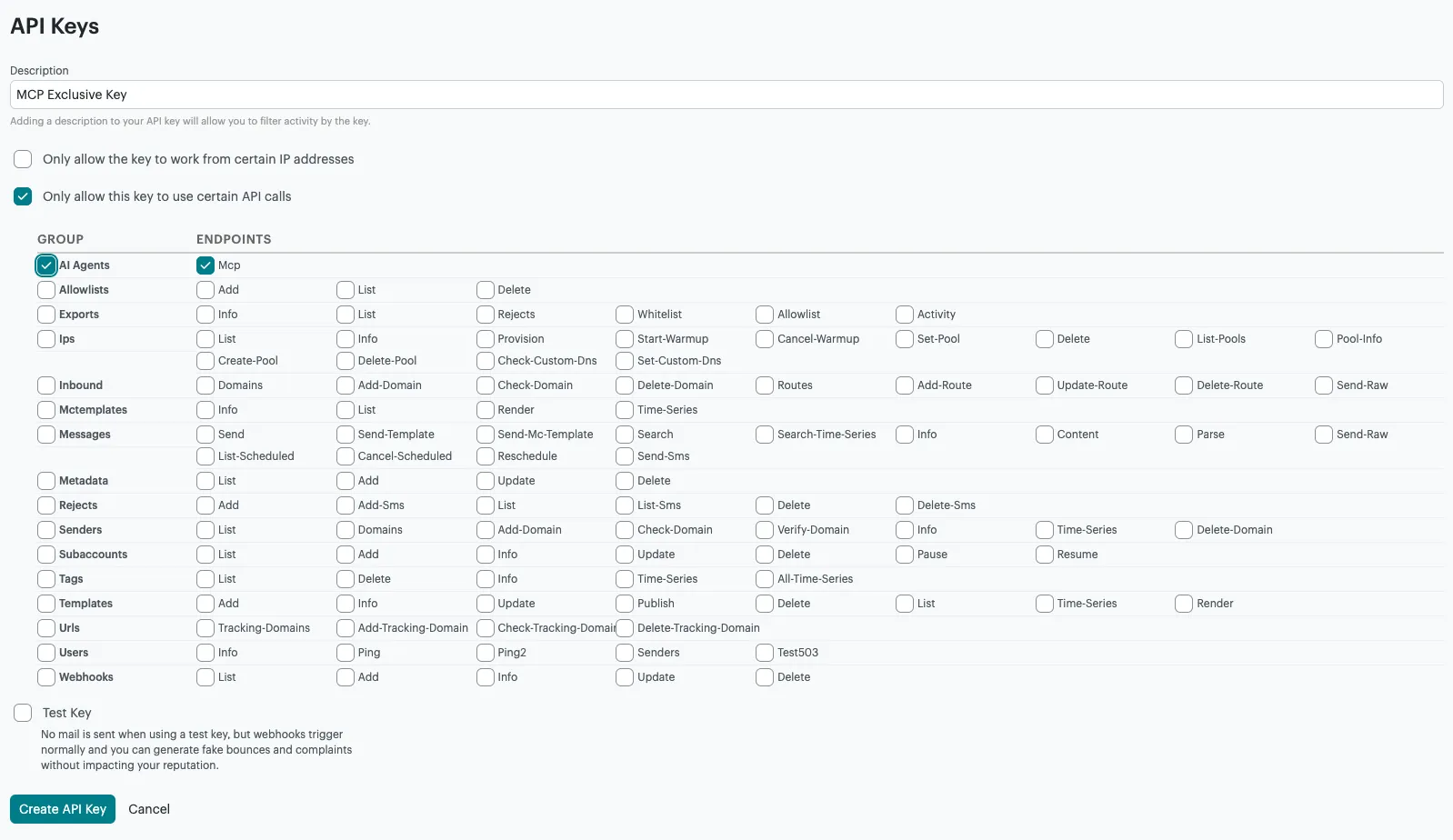
It is important that the API key used to authorize the MCP has the ability to complete the actions the MCP can do. If your API key is created with no restrictions, by default the MCP can be used.
If you want to only allow the API key to use certain API calls and be able to use the MCP, the API key permissions must have the “AI Agents” group enabled.
Troubleshooting
- API key issues Does it exist? Is it enabled?Does it have the correct permissions?
- Make sure you have your sending domain and/or SMS number setup before sending email and/or SMS messages
- Review the mcp.json file in your AI client of choice: https://code.claude.com/docs/en/mcphttps://cursor.com/docs/mcphttps://code.visualstudio.com/docs/copilot/customization/mcp-servers
- For API error responses, refer to our API error code documentation
Example Prompts
**Connection Check **“Verify that my Mandrill MCP integration is active and confirm that you can access my account.”
**Send Email Test **“Send an email to sample@gmail.com with the message: ‘Hey, my MCP sent this!’”
**Engagement Metrics Retrieval **“Retrieve open and click metrics from my account, including data for the last three emails sent.”