About Email Domain Authentication
Mailchimp automatically authenticates your email campaigns to stop spam, forgery, and phishing.

Get the job done with a pro
From training to full-service marketing, our community of partners can help you make things happen.
To help your emails reach your recipients' inbox, set up email authentication for your custom domain. Domain authentication proves you're a legitimate sender, and it can improve your email delivery.
This article covers:
Email domain authentication
The process that email providers use to validate the authenticity of an email sender. This is achieved by adding records to the Domain Name System (DNS).
Email domain verification
A required validation process that Mailchimp uses to make sure you’re sending emails from a legitmate email address that you have access to. This is achieved by clicking a link in a verification email, or entering a verification code into your Mailchimp account. This happens before domain authentication.
DNS record
A Domain Name System (DNS) record is a piece of information that connects a domain name to an IP address. DNS records are stored on DNS servers, which act as an internet directory.
CNAME record
A type of DNS record that links 2 domains. When you authenticate your email domain with Mailchimp, you’ll add 2 CNAME records to your domain's DNS records to prove ownership over your domain.
DKIM
DomainKeys Identified Mail (DKIM) authentication is a sender identification tool that protects email senders and their recipients from spam, forgery, and phishing. This includes CNAME records.
TXT record
A text record (TXT) is a type of DNS record that stores text-based information associated with a domain name. When you authenticate your email domain with Mailchimp, you’ll add 1 TXT record to your domain's DNS records to prove ownership over your domain.
DMARC
Domain-based Message Authentication, Reporting & Conformance (DMARC) is a method of email authentication to show that an email you send is from the real you. This includes TXT records.
Entri
We recommend Entri for automatic email domain authentication. Entri securely connects directly to your DNS provider to automatically configure the required DNS records and domain settings. This eliminates the need for a developer and uses an encrypted login to help ensure that your personal data isn't stored.
To learn more about these terms and the domain authentication process, check out About Email Domain Authentication.
Note
Gmail and Yahoo require custom authentication. They also require a published Domain-based Message Authentication, Reporting & Conformance (DMARC) record for those who send more than 5,000 emails to Gmail or Yahoo addresses in a 24-hour period. To prevent email bounces, we recommend that you authenticate your email domain and configure DMARC.
Email hosting services have security processes to filter malicious senders and spam. If you send emails from an unauthenticated domain, you may experience delivery issues. Domain authentication proves that you're a legitimate sender, and it can improve your email delivery.
Mailchimp now offers automated authentication using Entri to configure the required DNS records.
For manual setup, email domain authentication with Mailchimp still requires you to add 2 CNAME records and 1 TXT record to your domain’s DNS records. To do this manually, find the custom authentication instructions in your Mailchimp account, copy the domain information, and then paste it into your domain’s DNS records.
Authentication can only be added to domains that you or your business own and control. Public email services like Gmail and Yahoo can't be authenticated. To learn more, check out Limitations of Free Email Addresses.
Domain authentication is different from domain verification. With Mailchimp, you’re required to verify your email domain, but this doesn’t impact your email delivery. For best email delivery results, we suggest that you verify and authenticate your email domain.
Before you authenticate your email domain, you need to verify it. This is how we make sure you have permission to send email from your email domain.
You can start the authentication process from several places in your Mailchimp account, including new contextual entry points. The method to complete authentication is now primarily automated via Entri.
Mailchimp uses Entri to easily authenticate your domain by connecting directly to your DNS provider.
If you prefer to authenticate manually, click Or manually authenticate your domain. Select your DNS provider from the dropdown menu. If your provider isn't listed, select Other. Then follow these steps.

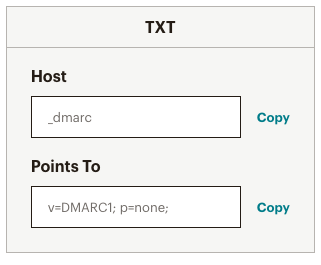
Mailchimp will begin validating your DNS records. Most records update within a few minutes, but this could take up to 48 hours. You’ll receive an email notification once validation is complete.
While authentication is pending, the domain status on the Domains page will show Authentication in progress. In the campaign workflow, the message may state, Your domain is still being authenticated. This could take up to 48 hours.
If authentication is successful, the Authenticated label appears next to the domain. If authentication fails, a message will appear on the Domains page. You will be prompted to Resolve or Restart authentication.
Note
Mailchimp logs and stores your authentication when you set it up. If you change your CNAME records after you’ve authenticated, it could interfere with the information we have on file.
To avoid issues, disable authentication on the Domains page of your Mailchimp account, then re-authenticate after your domain record changes are complete.
Here are some authentication resources from common domain providers. If your service isn't listed, search your provider's site for help documents, or contact their support team for additional Support.
Amazon Web Services: Configuring DNS, Resource Record Types
Bluehost Bluerock: Manage DNS Records
Bluehost Legacy: DNS Management
Dreamhost: DNS Overview
GoDaddy: Add a CNAME Record
Google Domains: DNS Basics
Hostgator: Manage DNS records
Hover: Edit DNS Record
IONOS: Configuring CNAME Records
Namecheap: SPF & DKIM
Squarespace: Advanced DNS Settings
Stablehost: How do I get to cpanel?
Wordpress: Adding Custom DNS Records
Siteground: Create CNAME Records
My CNAME record isn’t updating when I create the domain key.
Depending on your domain provider, you may only need to use part of the information in the Name field. For example, if you enter “k2._domainkey.example.com” and “k2._domainkey.example.com.example.com” is created, update your CNAME record to only include “k2._domainkey”.
My records are all correct, but my domain won’t authenticate in Mailchimp.
If you've entered all records correctly and your authentication isn't working right away, there typically isn't a cause for concern. You may need to wait a bit longer (up to 48 hours) since it can take awhile for servers to recognize your changes.
If you still need additional support, check out your domain provider's help site for tips on troubleshooting DNS records in their service.
Technical Support

Have a question?
Paid users can log in to access email and chat support.
Mailchimp automatically authenticates your email campaigns to stop spam, forgery, and phishing.
If you use a free email domain as your campaign's From email address it may cause delivery problems. Learn why and how Mailchimp can help.
Domain verification keeps your emails out of spam folders and protects your reputation. Verify, remove, and troubleshoot email domains in Mailchimp.