Create a Survey
Learn how to create and manage surveys in Mailchimp.



Get the job done with a pro
From training to full-service marketing, our community of partners can help you make things happen.
Mailchimp surveys help you collect valuable feedback from your contacts and others who may be interested in your brand. While on the go, use Mailchimp’s mobile app to manage surveys you've created. Preview survey responses, analyze results, or share your survey in email campaigns so people can engage immediately. If your survey asks for an email address, use it to apply tags and grow your audience.
In this article, you’ll learn how to use surveys on your mobile app.
Here are some things to know before you begin this process.
You’ll create and design your survey on the desktop app. When you’re ready, you can publish and share your survey from your mobile phone. Share in an email or share the survey URL anyway you prefer. When you tap the share email button from the success moment page, or from the reports page, a simple email template with existing headline, copy, and a button that links to your survey is created. To see how it looks, preview your survey before sending.
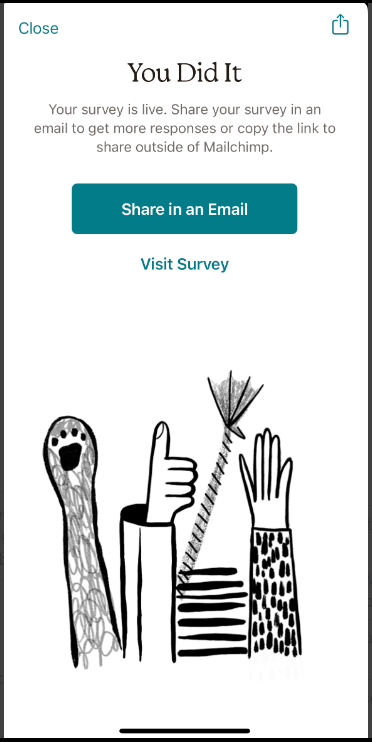
A respondent’s email address is tracked if they are already in your audience, or if you ask for their email address. You can also copy the link to share outside of Mailchimp to help grow your audience.
Use the mobile app to manage all of your surveys. Preview your survey, view campaign survey details, and analyze survey responses while on the go.
If at any time you need to take your survey offline without deleting responses, unpublish it right from your mobile phone. Updating or deleting your survey requires you to use the desktop app. To learn more, check out Create a Survey.
Create a survey using Mailchimp’s desktop app. Once your survey is created, manage your survey details using Mailchimp’s mobile app.
To preview and publish your survey, follow these steps.
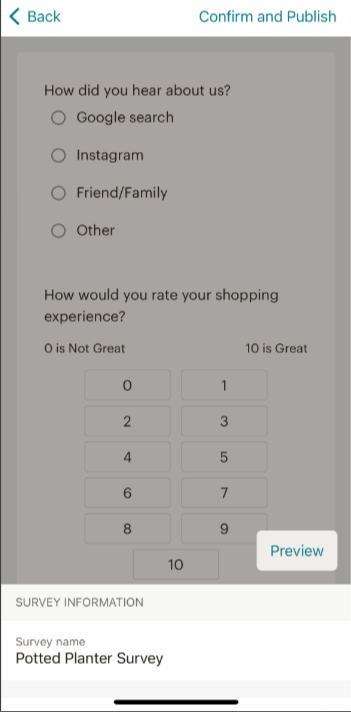
That’s it! Your survey is now live.
Now that your survey is live, share it in an email or copy the survey URL and share any way you prefer.
This option creates a link to send to your contacts. Share your published survey via the survey campaign details or survey report within the mobile app.
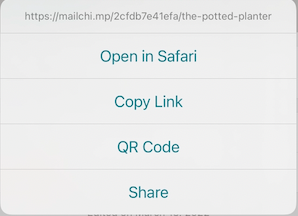
Here are the different share options you'll see.
A respondent’s email address is tracked if they are already in your audience, or if you ask for their email. Recommended for employee feedback, website feedback, order forms, chatbots, or new contacts.
This option creates a draft email campaign that includes a link to the published survey embedded in the email’s content.
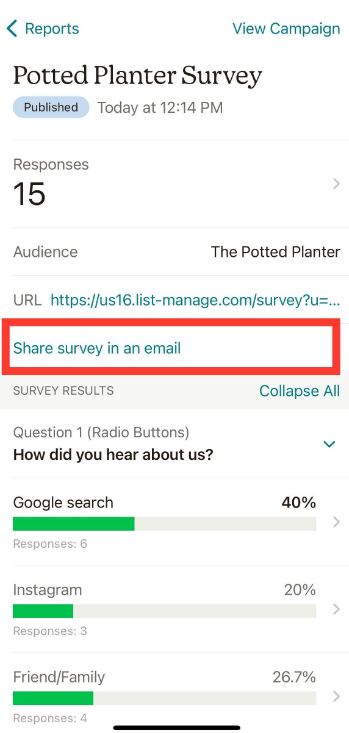
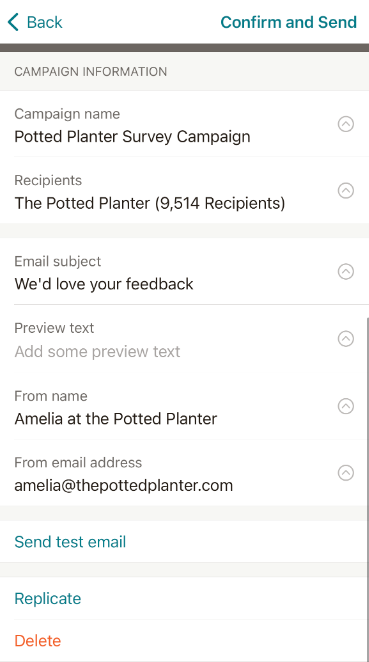
When contacts submit your survey, we'll store captured responses in the survey report.
To view your survey results, follow these steps.

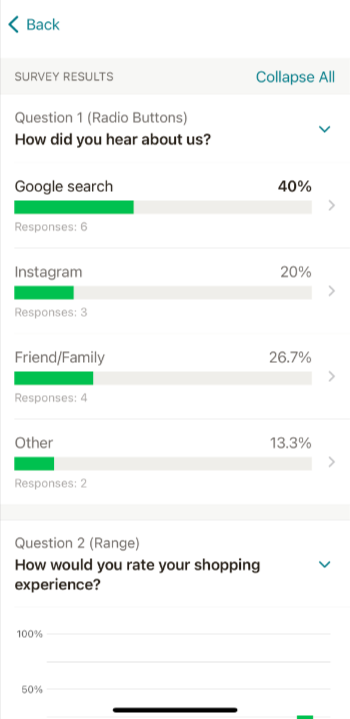
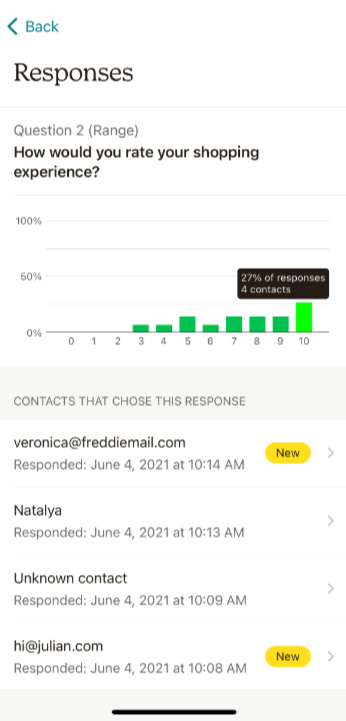
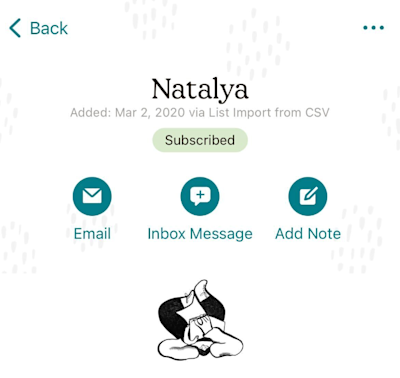
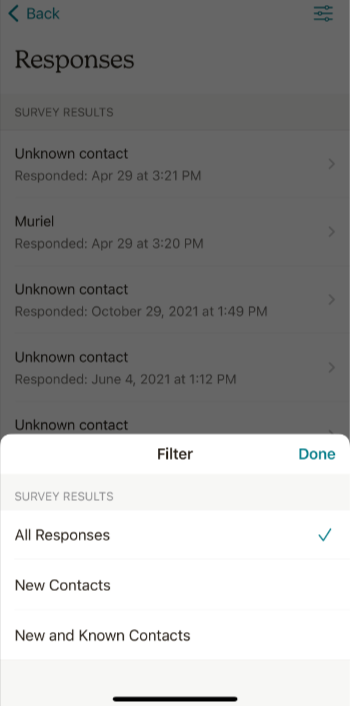
To view survey responses, follow these steps.
Here are the different options you’ll see.
If you need to take a survey offline without deleting any responses, unpublish your survey at any time.
To unpublish a survey, follow these steps.
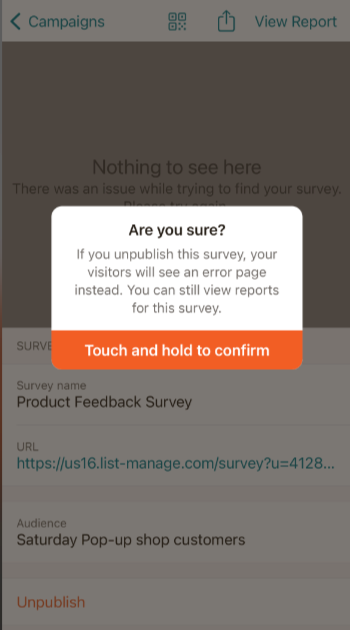
Unpublished surveys display a message that lets people know the survey is closed.
Technical Support

Have a question?
Paid users can log in to access email and chat support.
Learn how to create and manage surveys in Mailchimp.
Learn how to view Mailchimp reports on your phone or tablet.